
The Amazon Parent Dashboard can turn scattered device rules into one manageable family system. I find its real value comes from combining schedules, content controls, and activity reports instead of changing one setting at a time.
Parents can manage supported Fire tablets, Kindle e-readers, Echo speakers, Fire TV devices, and mobile experiences. The free controls do not require Prime or an Amazon Kids+ subscription. However, Kids+ adds a larger catalog of curated books, videos, apps, and games.
What Is the Amazon Parent Dashboard?
The Amazon Parent Dashboard is a centralized control hub for Amazon Kids profiles. Parents can create up to four child profiles, adjust age filters, set time limits, approve content, and review reported activity.
You can also pause supported device access remotely. This control helps when dinner starts, homework needs attention, or a routine changes unexpectedly.
Amazon explains the main controls on its official Parent Dashboard page. Parents should still review each setting themselves. An age filter provides a useful starting point, but it cannot replace individual judgment.
How to Access the Amazon Kids Parent Dashboard
Visit parents.amazon.com in a browser and sign in with the Amazon account connected to the child’s profile. You can also install the Amazon Kids Parent Dashboard app on a compatible phone.
A Prime membership is not required. Amazon Kids+ is also optional. You only need an Amazon account and at least one child profile to use the free parental tools.
If the dashboard opens without showing a profile, check which Amazon account owns the child profile. Using a second household account is a common cause of missing settings.
Set Up Parental Controls That Work Together
A time limit alone rarely creates a reliable routine. I prefer to connect three controls: an access schedule, a total daily limit, and Learn First. This setup gives a child clear boundaries while leaving room for reading and educational activities.
Create a Child Profile
Enter the child’s name and birthdate, then review the assigned age range. Amazon uses that information to recommend content maturity settings.
Do not accept the default filter without checking it. Two children of the same age may have different interests, sensitivities, and reading abilities. Adjust the range and block individual titles when necessary.
Build a School-Night Schedule
Consider a child who returns home at 3:30 p.m. The device can remain unavailable until 4:30 p.m., open for one hour, and lock again at 8:00 p.m.
Set a 60-minute entertainment limit but leave reading available longer. This approach separates passive viewing from reading instead of treating every screen activity as equal.
The American Academy of Pediatrics recommends creating a family media plan based on each child and household. The dashboard supplies controls, while the family supplies context.
Prioritize Learning With Learn First
Learn First blocks entertainment until the child completes selected educational goals. For example, you might require 20 minutes of reading before games become available.
Test the feature on the child’s device after saving it. Setting changes sometimes need an internet connection, a short sync period, or a device restart.
Manage Content Without Blocking Everything
The Amazon Parent Dashboard lets parents adjust age filters, block specific Kids+ titles, and share eligible items from their Amazon library.
Personal documents, music, Prime Video rentals, and some Prime Video content may not be shareable through a child profile. Third-party apps can also apply their own subscriptions, advertising rules, and parental controls.
Review new apps before approving them. Check chat functions, external links, advertising, data collection, and in-app purchases. This extra review matters because an approved app can contain experiences outside Amazon’s filters.
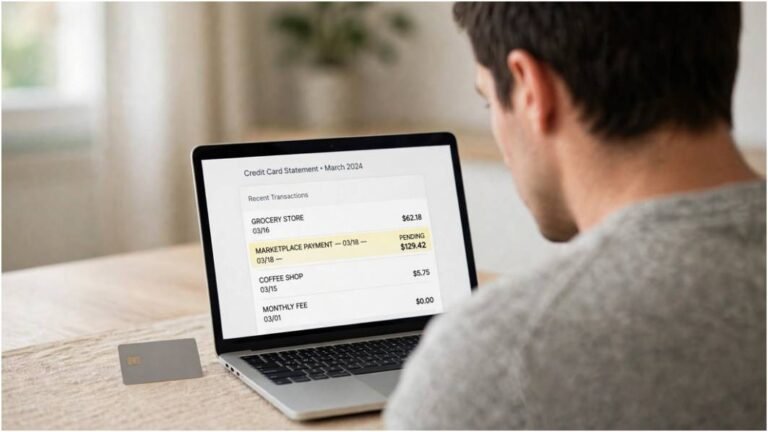
Parents reviewing unfamiliar account charges may also find Amazon Mktplace PMTS useful. It can help distinguish a marketplace transaction from a purchase made through a child profile.
Monitor Activity Without Misreading the Reports
Activity reports show supported books, videos, apps, games, websites, and Alexa skills used by a child. Reports can help parents spot patterns and start better conversations.
They should not be treated as a perfect record of every action. Third-party apps may not send detailed activity data to Amazon. Sync delays can also affect recent information.
I would use reports to ask focused questions. If a child repeatedly opens one science app, that interest may guide future content choices. If video use rises near bedtime, the schedule may need adjustment.
The Amazon Parent Dashboard works best as a conversation aid, not a surveillance scorecard.
Control Browsing, Purchases and Communication
Fire tablet web settings can block browsing, allow selected sites, or provide broader filtered access. Available choices may vary by device, profile, and subscription.
Filtered access does not guarantee that every unsuitable page will be blocked. Parents should review browsing activity and teach children how to leave suspicious pages.
Store access can let children request apps without giving them unrestricted purchasing power. Keep password protection enabled and review each request. The Federal Trade Commission’s consumer guidance also recommends checking app permissions and privacy practices.
Communication features on supported Fire and Echo devices require parental consent. Review approved contacts and disable calling or messaging when a child does not need it.
The same spending habits can help outside Amazon. For example, parents searching for a StockX Discount Code should verify the offer on trusted pages before sharing payment information.
Fix Common Parent Dashboard Problems
If the Amazon Parent Dashboard will not load, confirm that you are using the account connected to the child profile. Then update the app, check Wi-Fi, and sign out before signing in again.
Clear the browser cache or try another supported browser if the web portal fails. For missing settings, restart the child’s device and confirm that it has completed its latest software update.
If limits do not affect a third-party app, check that app’s own parental controls. Amazon’s restrictions may not measure or manage every external service in the same way.
Avoid deregistering a device as the first fix. That step can require additional setup afterward. Use it only when Amazon support instructions recommend it for the specific problem.
Your Dashboard, Your Rules
The Amazon Parent Dashboard is most useful when its controls reflect a real household routine. Start with one child profile, one bedtime, and one daily limit. Test them on the child’s device before adding more restrictions.
My best tip is simple: review the activity report after seven days. Keep the rules that helped, change the ones that created friction, and discuss the results with your child. A dashboard can enforce a limit, but a clear family agreement makes that limit easier to understand.
Frequently Asked Questions
1. Is the Amazon Parent Dashboard free?
Yes. Its basic parental controls are free and do not require Prime or an Amazon Kids+ subscription.
2. How do I access the Amazon Parent Dashboard login?
Visit parents.amazon.com or open the Amazon Kids Parent Dashboard app and sign in with the account linked to the child profile.
3. Can parents see browsing history?
Parents can review supported browsing activity when web access and reporting are enabled, but coverage may vary by device and app.
4. Why are my screen-time limits not working?
Check Wi-Fi, profile linkage, device updates, schedule settings, and the separate controls used by third-party apps.