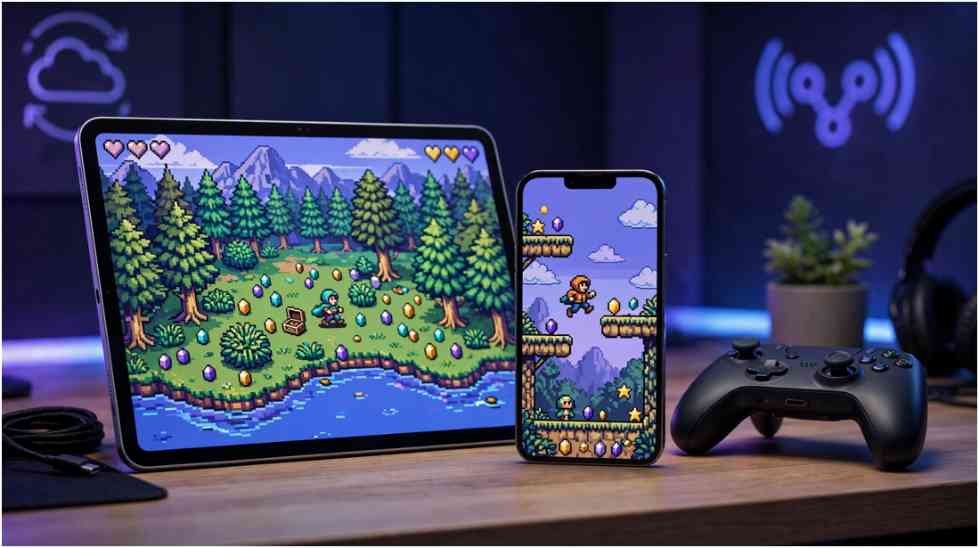
Delta iOS can turn an iPhone or iPad into a capable retro gaming system without jailbreaking the device. The app is easy to install, but a careless setup can still leave you with missing saves, confusing controls, or an unorganized game library.
I approach Delta as more than an app with an import button. A reliable setup needs four elements: an official installation, legally obtained game files, automatic save protection, and controls suited to each console.
What Is Delta iOS?
Delta is an open-source emulator developed by Riley Testut, who previously created GBA4iOS. It runs games made for several classic Nintendo systems through software emulation.
The official Delta GitHub repository lists support for NES, SNES, Nintendo 64, Game Boy, Game Boy Color, Game Boy Advance, and Nintendo DS. Sega Genesis support also appears as a beta feature in the project repository.
Unlike cloud gaming, emulation occurs on the device. The app reads a compatible game file and recreates the original console’s hardware behavior. This local approach supports offline play and quick save states.
Delta iOS Features at a Glance
The following reference table shows what users can expect from the official application.
| Feature | What it does | Practical benefit |
| Save states | Saves progress at almost any moment | Useful before difficult levels |
| Delta Sync | Syncs games, saves, skins, cheats, and BIOS files | Protects progress across devices |
| Controller support | Works with common console and MFi controllers | Provides physical buttons |
| Custom skins | Changes the on-screen controller layout | Improves comfort and visibility |
| Fast-forward | Runs supported games faster | Shortens repetitive sections |
| Cheat support | Accepts compatible cheat-code formats | Adds optional game modifications |
| AirPlay | Sends gameplay to a larger display | Creates a console-style setup |
| DS online play | Connects supported games through community servers | Enables selected multiplayer features |
Feature support can vary by system and game. A Nintendo DS title, for example, may behave differently from an N64 game.
How to Install Delta Safely
App Store Installation
For most US users, the official Delta App Store listing offers the cleanest installation method. Confirm that the application is “Delta – Game Emulator” and that Testut Tech appears as the developer.
The App Store version does not require a jailbreak, device-management profile, or unknown enterprise certificate. It also receives updates through Apple’s normal update system.
I would avoid websites offering “premium,” “unlocked,” or modified Delta IPA files. Those labels do not represent official editions.
Regional Installation Options
Distribution may differ outside the United States. Delta’s official documentation directs users to the App Store or an appropriate AltStore option based on location.
AltStore Classic can also support sideloading for advanced users. That process may require periodic app refreshing. It should only involve software and instructions published by the Delta and AltStore developers.
How to Import Games Without Creating a Mess
Delta iOS does not include commercial Nintendo games. Users must supply compatible game files.
After obtaining a lawful file, save it in the Files app or a supported cloud-storage location. Open Delta, select the plus icon, and choose the file. The game should then appear in the relevant system library.
The official Delta importing guide lists supported extensions. These include .nes for NES games, .gb for Game Boy, .gba for Game Boy Advance, and .nds for Nintendo DS.
My preferred organization method is simple: create one source folder for each console before importing anything. A library with 60 games divided across six folders takes less time to audit than one folder containing 60 unclear filenames.
Use descriptive filenames such as Game Title (USA).gba. Avoid changing the extension because Delta uses it to recognize the console format.
Protecting Saves With Delta Sync
A save state and an in-game save serve different purposes. An in-game save follows the original game’s system. A save state captures the emulator’s current condition.
Save states provide convenience, but they should not become the only backup method. Emulator updates can occasionally affect their compatibility. Maintain normal in-game saves whenever possible.
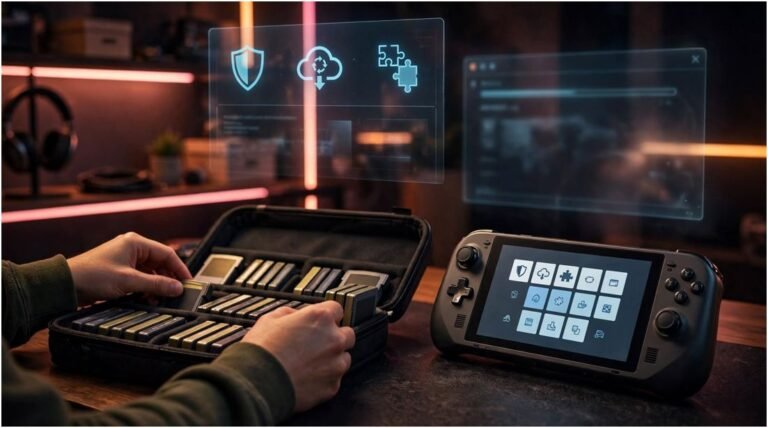
Delta Sync can store games, save files, save states, controller skins, cheats, and BIOS files through a supported cloud provider. Enable syncing before investing hours in a game.
My practical backup rule is “two save types, two locations.” I keep a normal in-game save, create occasional save states, and maintain a synchronized copy. One damaged state then becomes an inconvenience rather than a lost playthrough.
Bluetooth Controllers and Better Button Mapping
Delta iOS supports controllers recognized by Apple’s operating systems. Compatible options include Nintendo Switch Pro controllers, Joy-Cons, PS4 and PS5 controllers, Xbox controllers, MFi devices, and certain keyboards. In other woed Delta iOS is a digital revolution in the world of gaming.
Pair the controller through the iPhone’s Bluetooth settings. Then open Delta’s settings to select the controller and review its mappings.
I recommend testing the directional pad, shoulder buttons, and menu shortcut before starting a long session. Incorrect shoulder-button mapping may remain unnoticed in early levels but become disruptive later.
Touch controls still work well for slower Game Boy titles. A physical controller offers clearer advantages in platformers, racing games, and action-heavy N64 releases.
Online Multiplayer for Nintendo DS Games
An older claim says Delta cannot connect players on different devices. That information is now outdated.
The current version supports online-compatible Nintendo DS games through community-hosted Nintendo Wi-Fi Connection servers. Players can select a default server or supply a supported custom DNS.
This feature does not add universal multiplayer to every system. The selected DS game must have compatible online functions, and a community server must support them. Network quality can also affect latency.
For competitive sessions, confirm that every player uses the same game version. Test connectivity before organizing a longer event. Delta provides access to multiplayer, but it does not offer formal esports matchmaking, rankings, or tournament administration.
Settings That Improve the Delta Emulator Experience
There is no universal “best settings” profile. Each console places different demands on the emulator.
Start with default settings and change one option at a time. This approach makes it easier to identify the cause of audio, input, or display problems.
Fast-forward works well for long dialogue or repetitive battles. High speeds may affect audio quality, so reduce the rate when sound becomes unstable. Haptic feedback can improve touch controls but may use more battery during extended play.
For Nintendo DS games, check the system-specific settings if a title requires BIOS files. Users should obtain any required files legally from hardware they own.
Common Problems and Practical Fixes
If a game does not appear after importing, confirm that its extension matches a supported format. A file renamed with the wrong extension does not become a compatible ROM.
When a controller behaves incorrectly, open the controller settings and review its button mapping. Reconnecting the controller may also resolve temporary input issues.
If a synchronized save does not appear, verify that Delta Sync is enabled on both devices and uses the same cloud account. Allow the first device to complete its upload before opening the second one.
After a major app update, incompatible DS save states may require migration. Delta’s documentation includes an import process for affected states. Keeping normal in-game saves provides another recovery path.
Is Delta Emulation Legal?
Emulators are generally lawful software in the United States, but game files introduce separate copyright questions. Downloading an unauthorized copy does not automatically become lawful because the user owns a cartridge.
The safest approach is to use homebrew software or game backups created lawfully from media you own. Copyright rules and anti-circumvention restrictions can vary, so avoid treating online ROM collections as free libraries becuase i follow the process while using blooket bot to prevent any kind of cyber attack.
Delta does not supply Nintendo games. It provides the environment needed to run compatible files.
Frequently Asked Questions
1. Is Delta iOS safe for an iPhone?
The official App Store version is the lowest-risk choice, but users should still update iOS and avoid unofficial modified downloads.
2. Can Delta Emulator work without a computer?
Yes. US users can install it from the App Store and import compatible files through the Files app.
3. Which consoles does Delta support?
It supports NES, SNES, N64, Game Boy, Game Boy Color, Game Boy Advance, and Nintendo DS, with Genesis support in beta.
4. Does Delta support online multiplayer?
It supports online play for compatible Nintendo DS games through community-hosted WFC servers.
Your Pocket Console Deserves a Better Setup
Delta iOS works best when I treat saves, controls, and file organization as part of the initial setup. Installing the official app takes minutes, but protecting a 30-hour game demands a little more thought.
Enable Delta Sync, test one legally obtained game, verify the controller, and create both an in-game save and a save state. Your future self will appreciate that extra five-minute investment.